Points Manager Setup (Inspect Points Manager)
Overview
If you will click on little arrow on side of Examine Manager you will see many objects, look at object named InspectPoints Manager and when you will click on InspectPoints Manager, you will see a script named Points Manager.
Setup
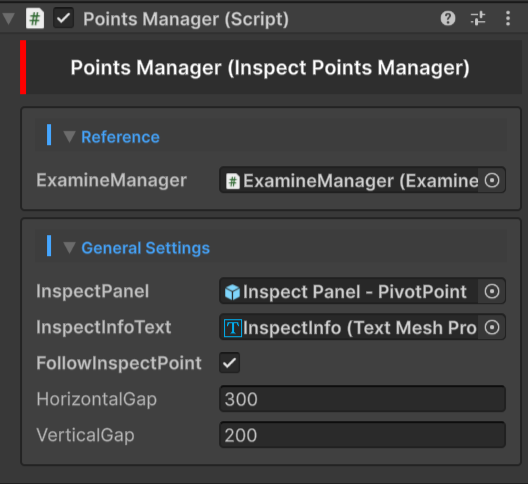
Reference
- ExamineManager → Add your examineManager reference here.
General Settings
- InspectPanel :-
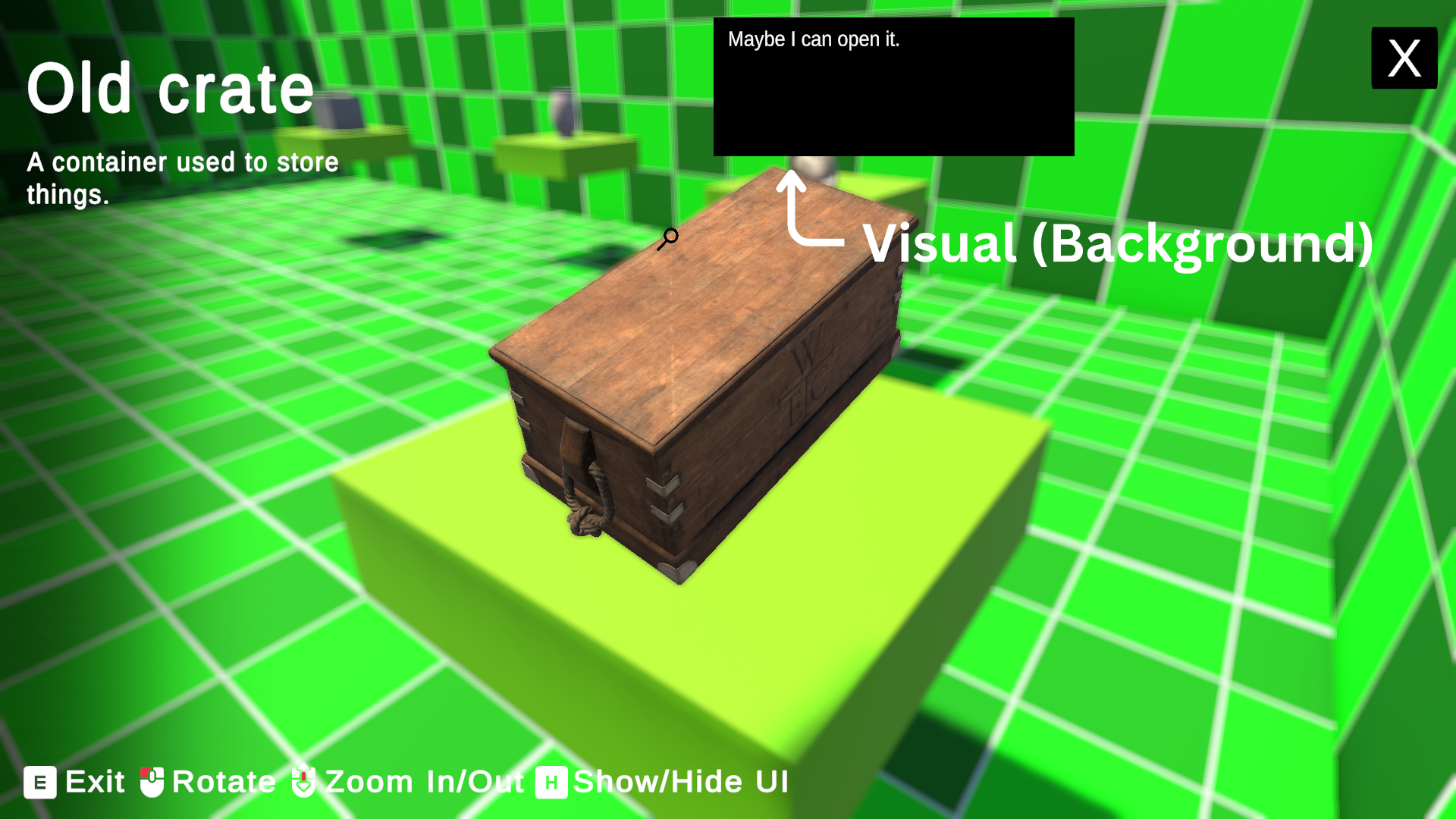
It is just a background on which the information about the inspect point will show.
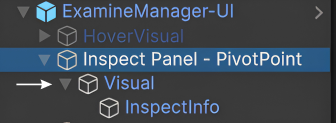
Here you have to add your inspect panel that you will find under ExamineManager UI there will be a object named as Inspect Panel - PivotPoint just drag and drop that in InspectPanel field.
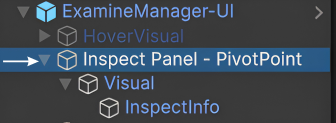
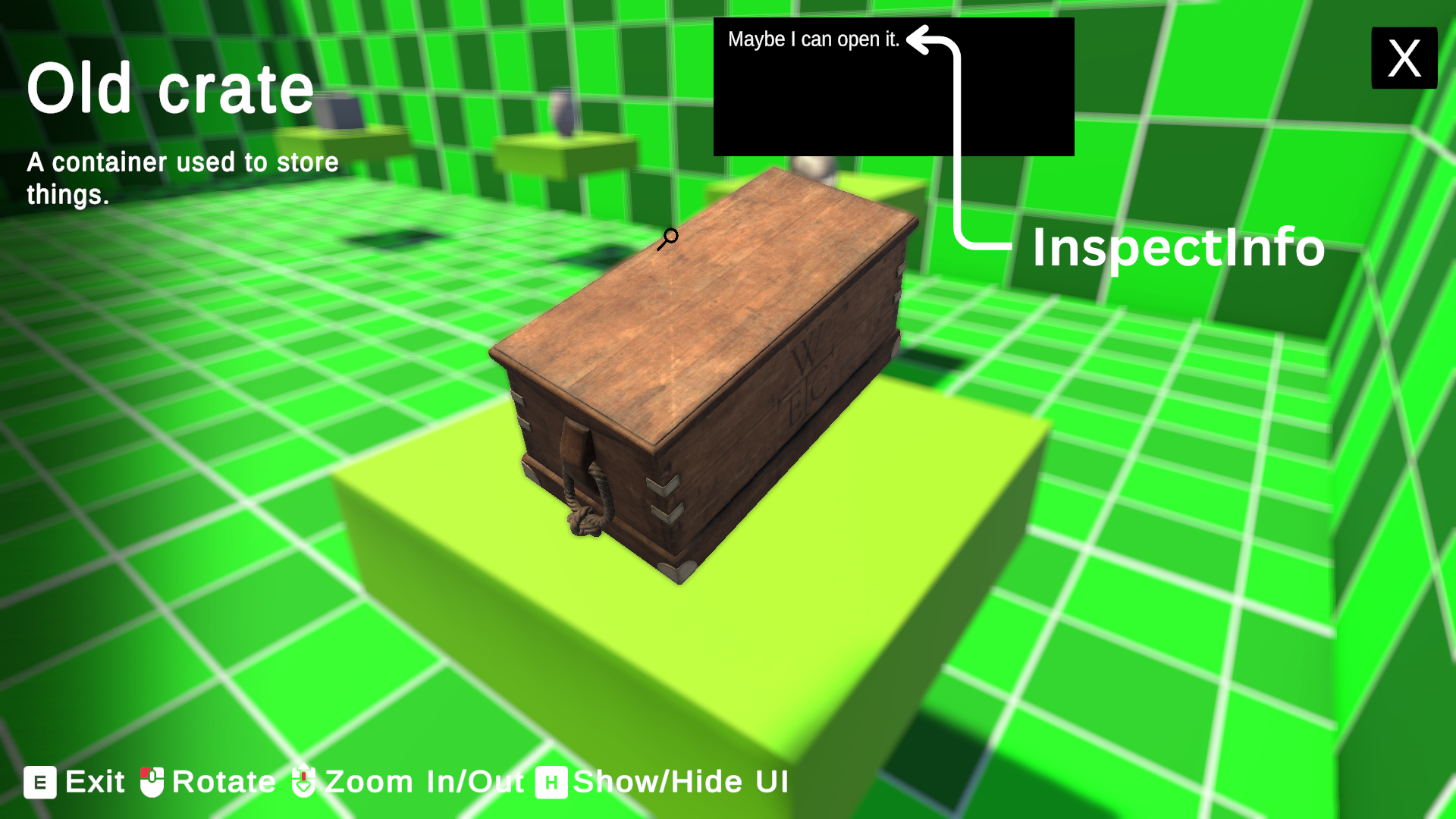
- InspectInfoText :-
It is the text that will show the information of inspect point.
You will find it under Inspect Panel - PivotPoint there will be a object named Visual under that you will find InspectInfo just drag and drop it in your InspectInfoText field.
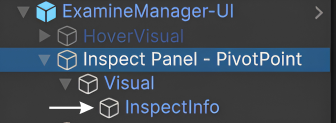
- FollowInspectPoint → Enable it, if you want your Inspect Panel to follow your InspectPoint and when disabled Inspect Panel will stay on one position.
After that you will see two fields under FollowInspectPoint.
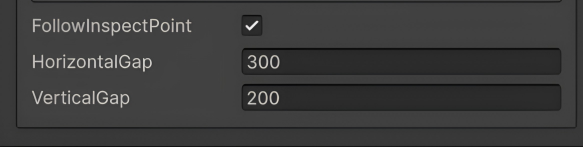
- HorizontalGap → Here you can adjust horizontal gap between Inspect Point and Inspect Panel.
- VerticalGap → Here you can adjust Vertical gap between Inspect Point and Inspect Panel.
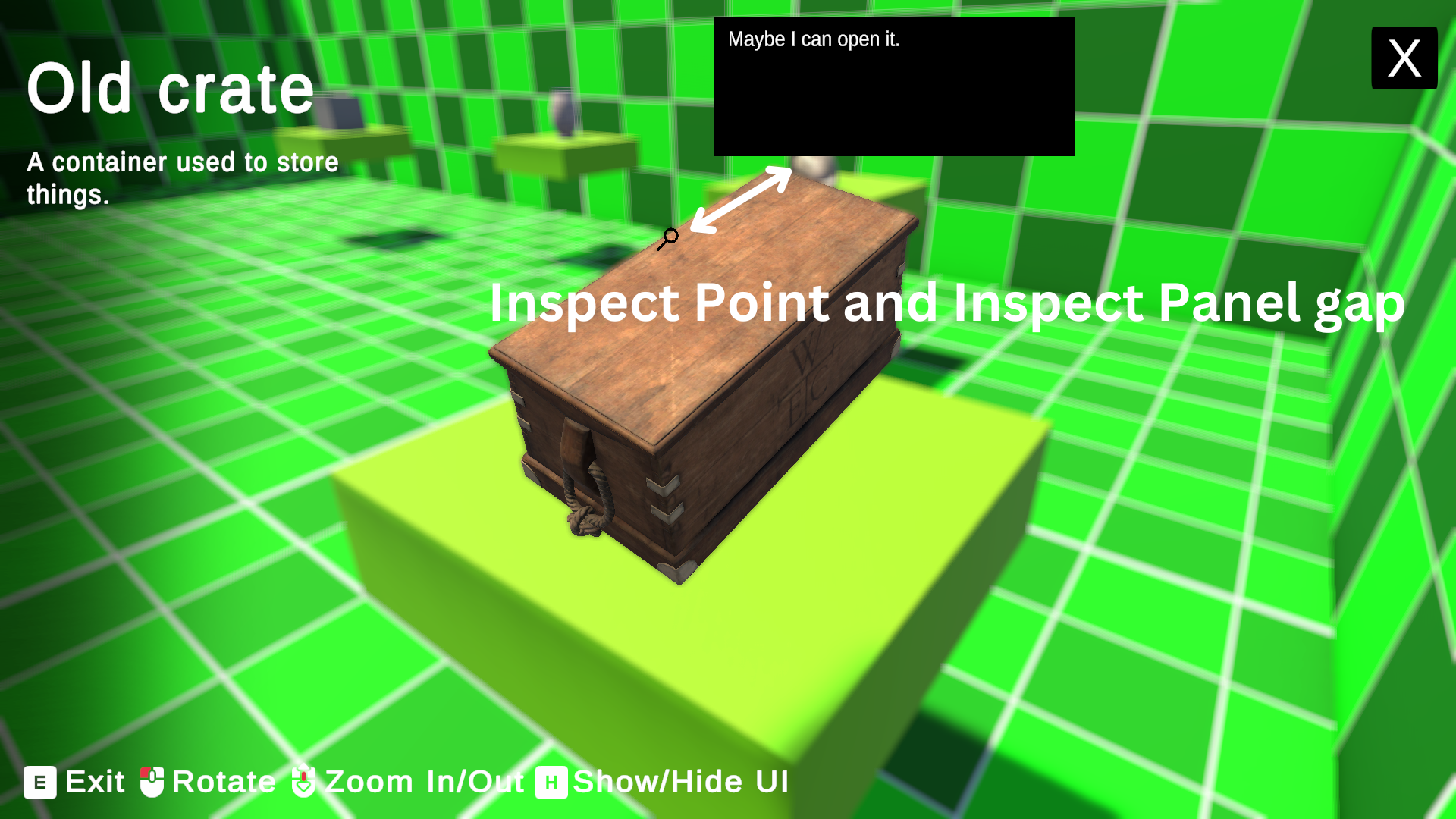
Inspect Panel - PivotPoint UI Explained
Now we can talk about Inspect Panel - PivotPoint Setup and about its childrens.
- Inspect Panel - PivotPoint → It is just a parent holding the Visual and InspectInfo.
- Visual → It is the background on top of which the information about that inspect point will show
→ You can change it if you want as it is just a simple Image component.
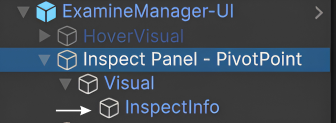
- InspectInfo → It is the Text component that will show the information about the inspect point.
Done...🎊